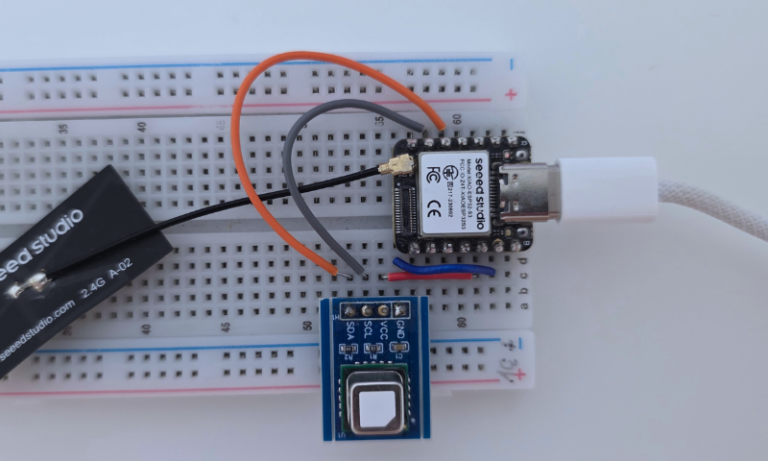
Choose any ESP32 board + R1BBIT Firmware.
Connect the DHT20/21 temperature and humidity sensor to the 1WIRE port.
Connect the HD44780 Display to the I2C ports.
Open the R1BBIT Cloud platform
Register using your email address.
Confirm your email.
Log in to the development environment.
Open Code Editor → set Connection Type to Server Device→ click Connect.
Write a simple script.
CONFIG
    I2C_SDA  15
    I2C_SCL  16
    I2C_FREQ 400000

    ONE_WIRE 12

    DISPLAY_DRIVER   SSD1309
    DISPLAY_I2C      0
    DISPLAY_I2C_ADDR 0x3C
    DISPLAY_WIDTH    128
    DISPLAY_HEIGHT   64
ENDCONFIG


VAR T, H, F
// Declare variables:
// T – temperature in Celsius
// H – humidity in percent
// F – temperature in Fahrenheit

DHT_INIT(T, H, 300)
// Initialize DHT temperature & humidity sensor
// T will store temperature (°C)
// H will store humidity (%)
// 300 ms – sensor measurement interval

DISPLAY_INIT(I2C, HD44780, 20, 2)
// Initialize LCD display
// I2C – communication interface
// HD44780 – display controller
// 20 columns, 2 rows

WHILE(1)
// Infinite loop for continuous measurements
    F = T * 9 / 5 + 32
    // Convert temperature from Celsius to Fahrenheit
    PRINT "TEMPERATURE ", F.0, "F "
    // Output temperature in Fahrenheit (no decimals) to terminal
    PRINT "HUMIDITY    ", H.0, "% "
    // Output humidity value (no decimals) to terminal
    DISPLAY_TEXT(0, 0, "Temp: ", F.0, "F", Font_7x10, 1, 0x0000)
    // Display temperature on row 0 of the LCD
    DISPLAY_TEXT(0, 1, "Hum:  ", H.0, "%", Font_7x10, 1, 0x0000)
    // Display humidity on row 1 of the LCD
    PAUSE 1000
    // Wait 1000 ms (1 second) before the next measurement
WEND
// End of infinite loop
Click Upload to Device → Script Start.
Result:
The OLED display shows temperature in Fahrenheit and humidity in percent, updated every 1 second.
The same data is also displayed in the online terminal on the website.
The same can be done using the mobile application:
- Install our Android app.
- Register using your email address.
- Confirm your email.
- Log in to the app.