Cloud Platform
The R1bbit Cloud platform extends your device beyond local control, enabling remote access, data management, and real-time interaction with your hardware.
Main Dashboard
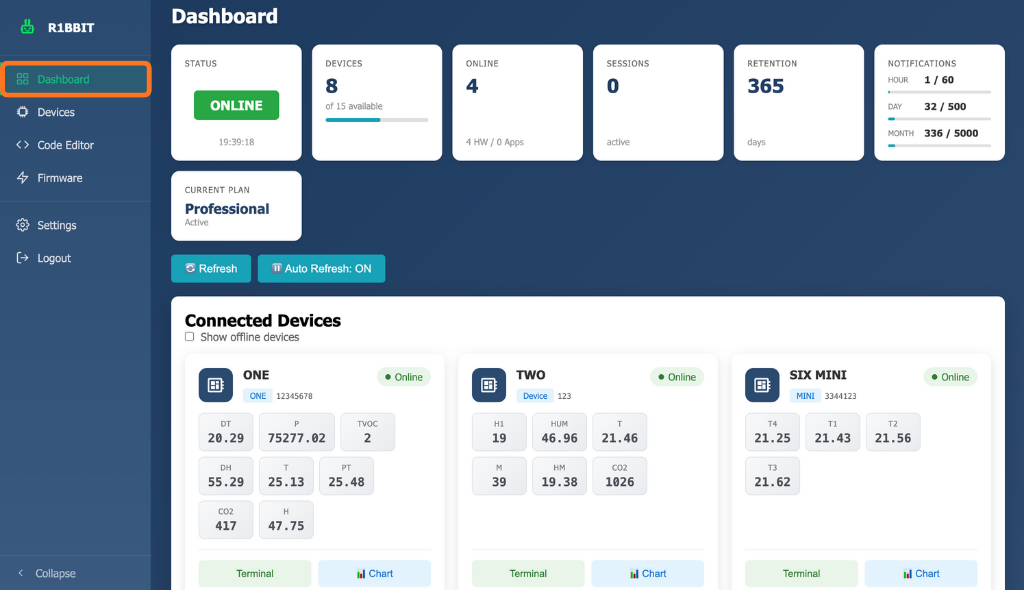
The main page provides an overview of the system and connected hardware:
- Status — current cloud availability.
- Devices — list of all devices linked to your account and how many are still available in your plan.
- Online – shows how many devices are currently connected (x HW / y Apps).
- Sessions — real-time view of active connections and users
- Retention – shows how many days your data is stored.
- Notifications – displays how many notifications have been used per hour, day, and month.
- Current Plan – displays your current subscription plan and its status.
- Refresh – manually update the list of devices.
- Auto Refresh – automatically updates the device list. Can be set to ON or OFF.
Connected Devices
Displays a list of devices with their activity status, variables sent to the server, serial numbers, and a “Chart” buttons.
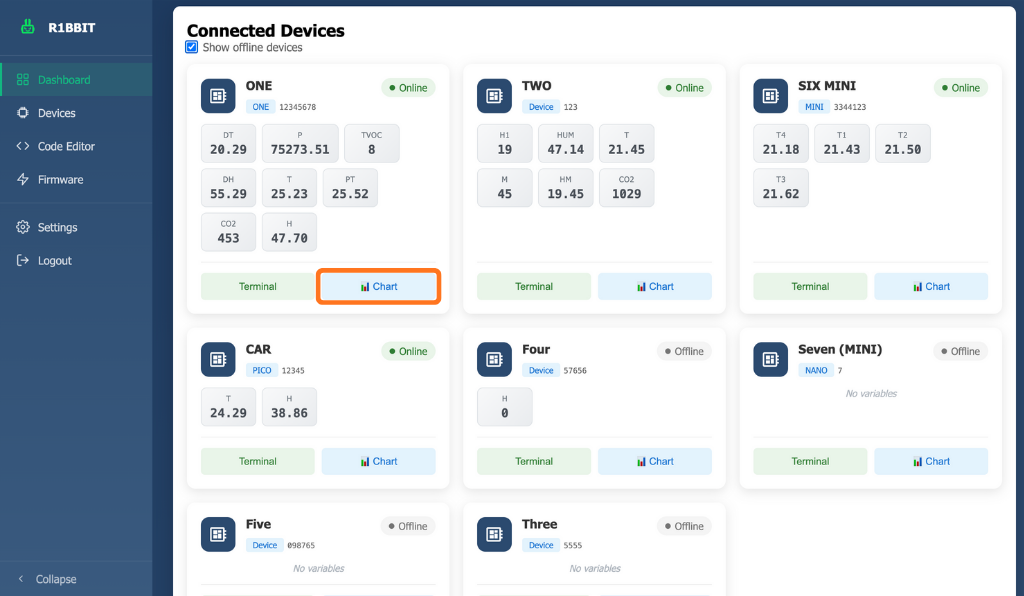
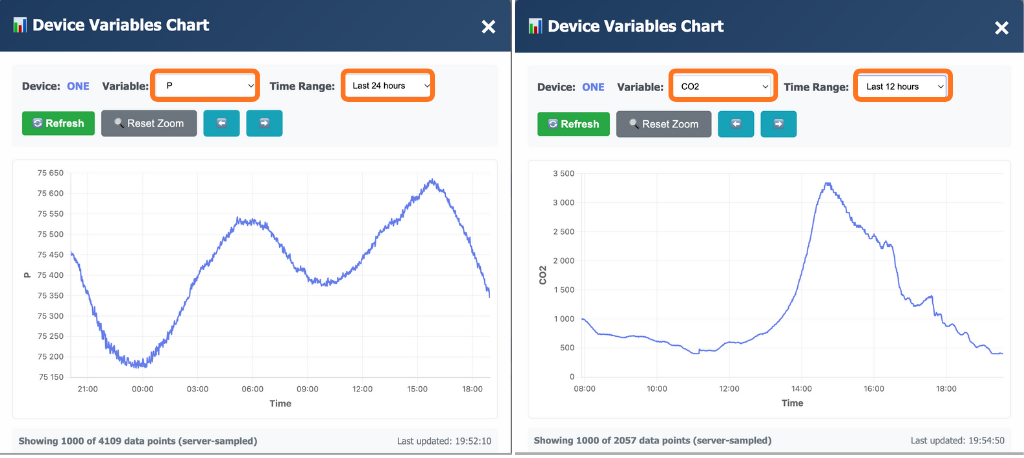
Chart – button to view graphs of selected variables over different time periods.
Devices
List of all devices linked to your account
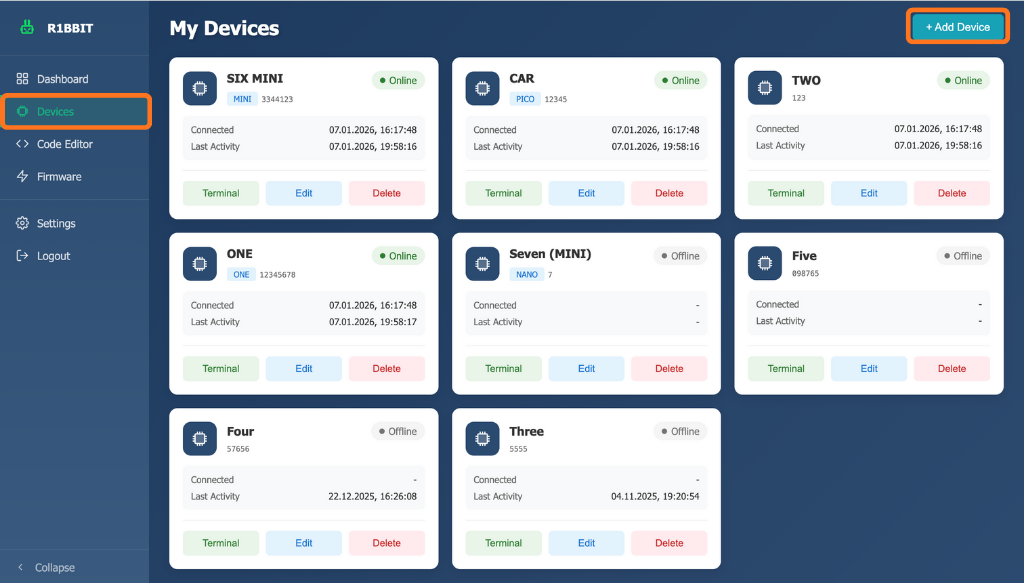
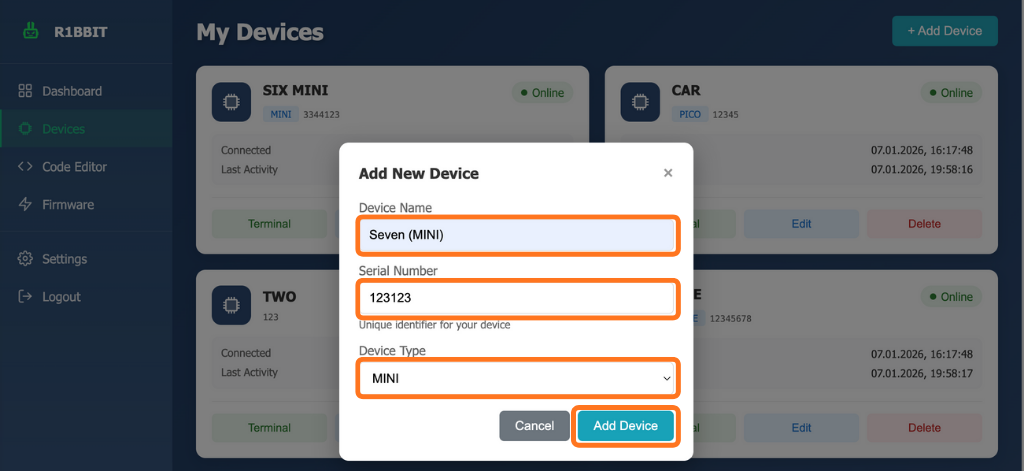
Add Device – click to register or add a new device to your account.
- Device Name – enter a custom name to easily identify the device.
- Serial Number – a unique custom number defined by the user to link devices.
- Device Type – select your device type from the list.
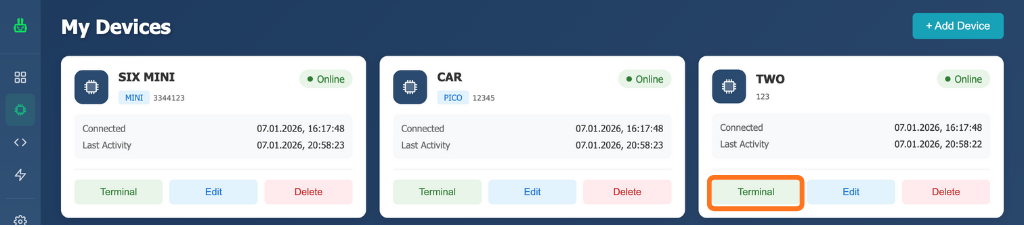
Terminal – opens the Code Editor window when clicked.
<> Code Editor
The Code Editor page is the core workspace and consists of several sections:
Connection Modes
- Server Device – Select Device – Connect
When a Wi-Fi module is available, the device can upload user data to the cloud server and be monitored or controlled from anywhere in the world with an internet connection. - USB Mode
When connected via USB, the device can be controlled locally without storing any data on the server. This mode is ideal for offline development, testing, and secure local usage.
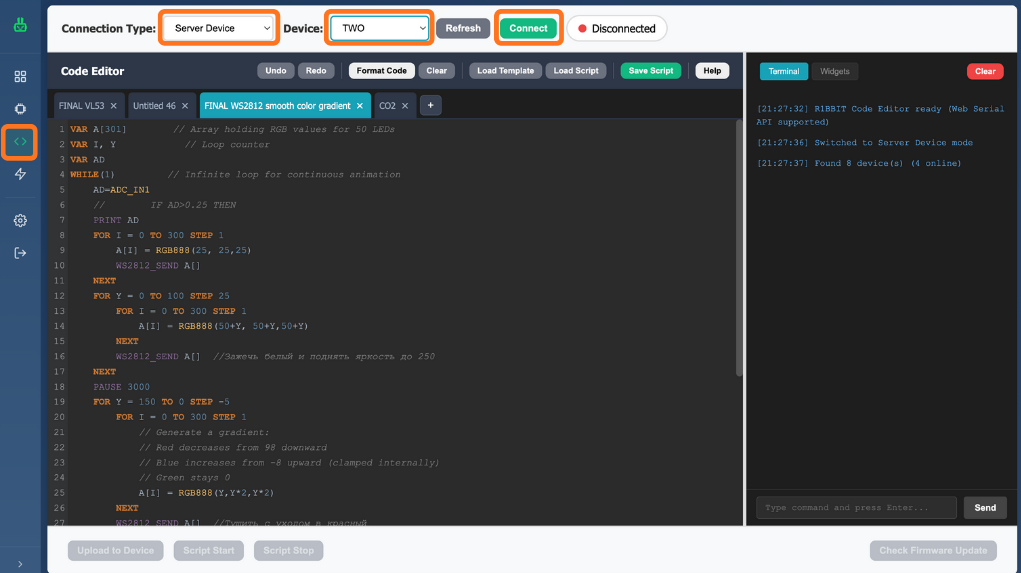
Write and manage scripts directly in the browser:
- Write scripts
- Save scripts
- Load scripts
- Load templates – download ready-made standard scripts for user convenience.
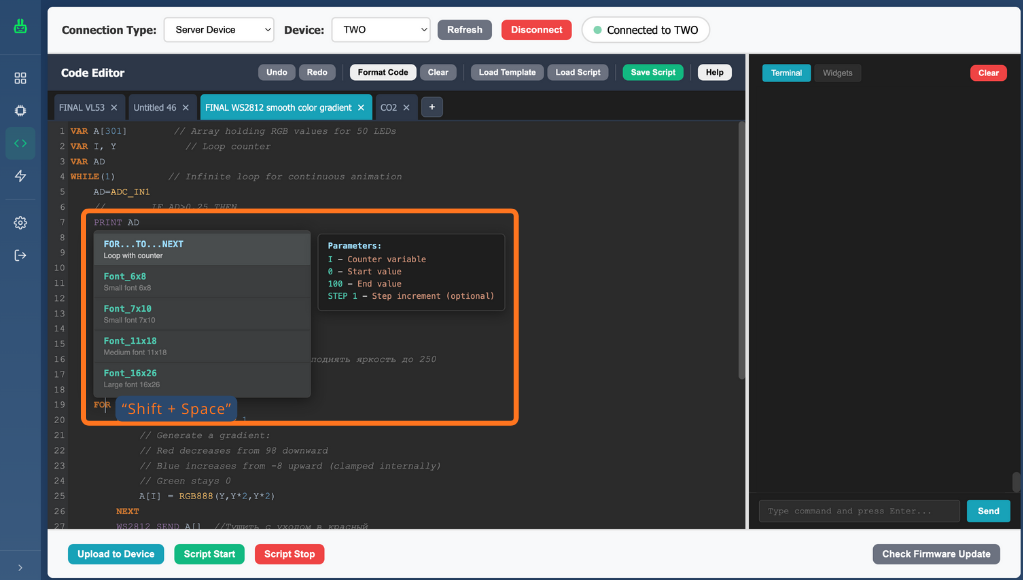
The editor includes syntax checking and formatting, making scripts easier to read, edit, сontext-sensitive help: “Shift + Space” and debug.
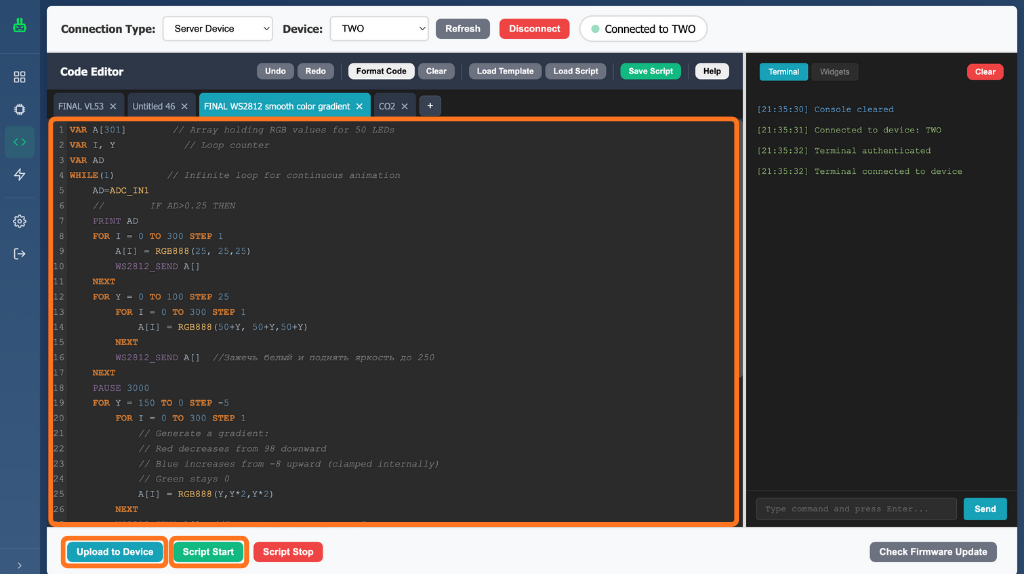
After writing a script, the user clicks “Upload to Device” to load it into the device’s memory. To start execution, press “Script Start”, and to stop it, press “Script Stop”.
Terminal
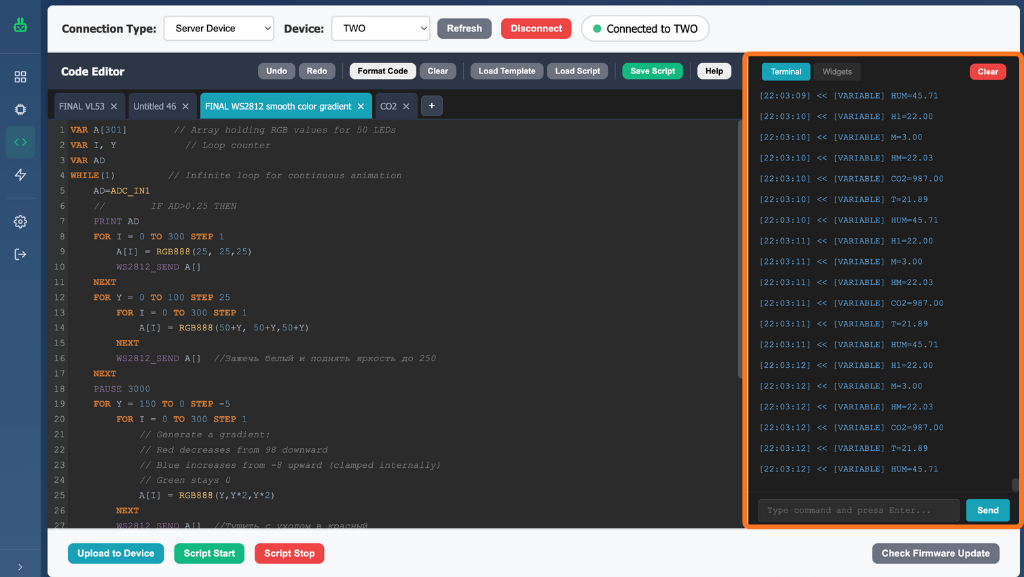
Displays live, real-time data output from the connected device for monitoring and debugging.
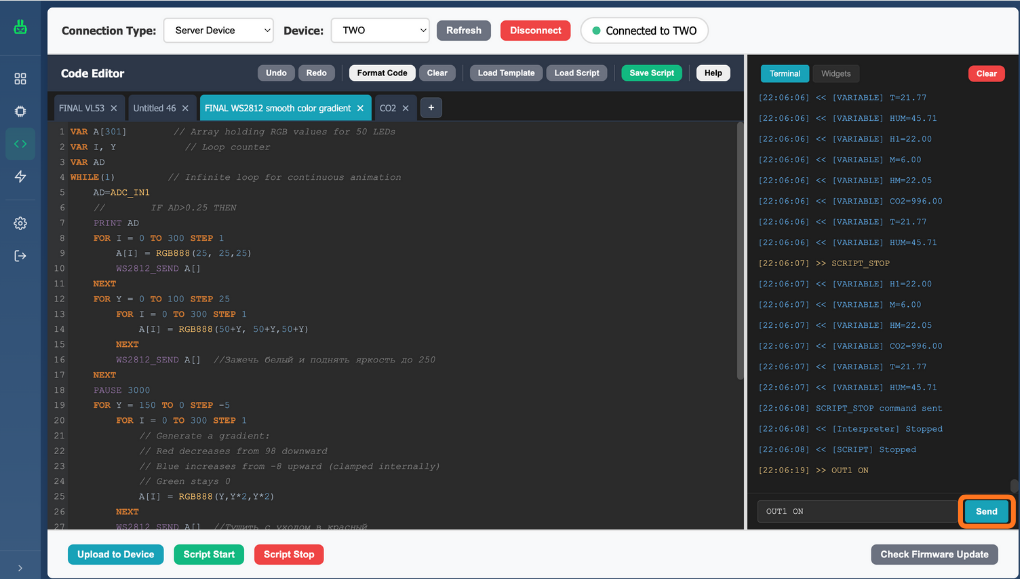
The terminal also allows sending control commands directly to the device. Commands are executed even while a script is running.
Help
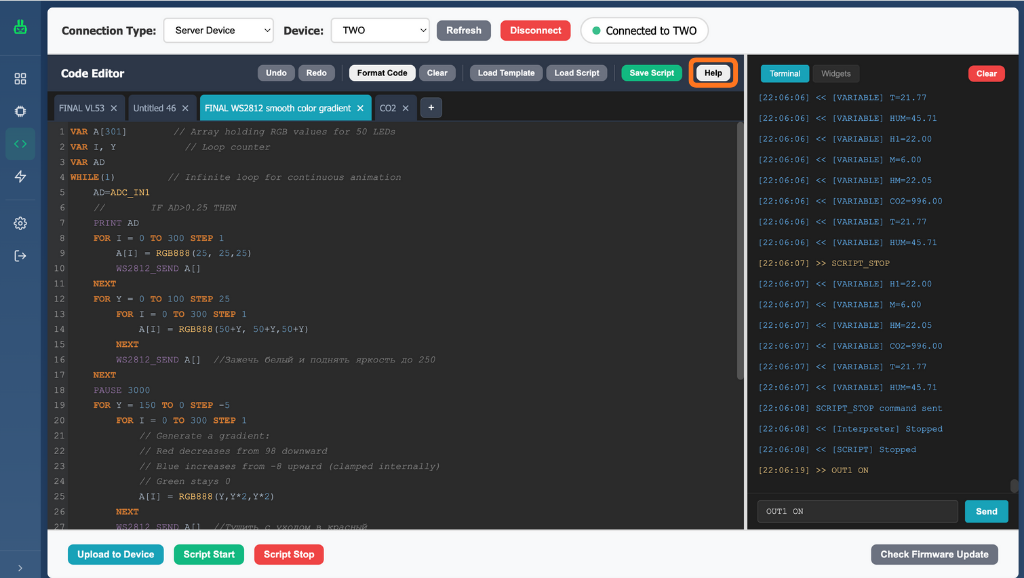
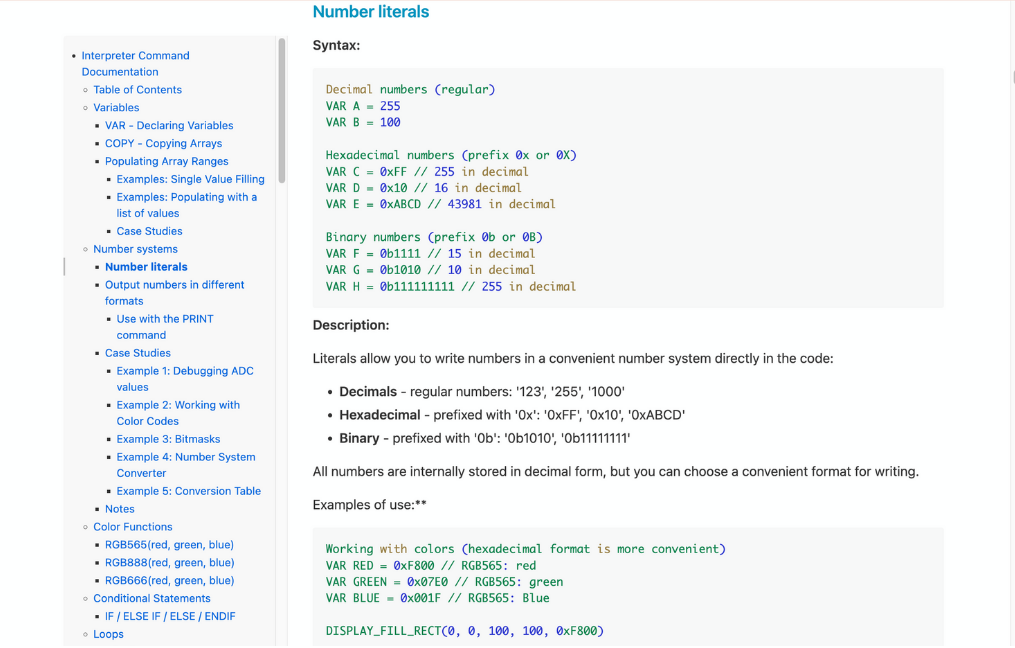
A complete reference for the built-in scripting language, including:
- Command descriptions
- Syntax explanations
- Practical examples
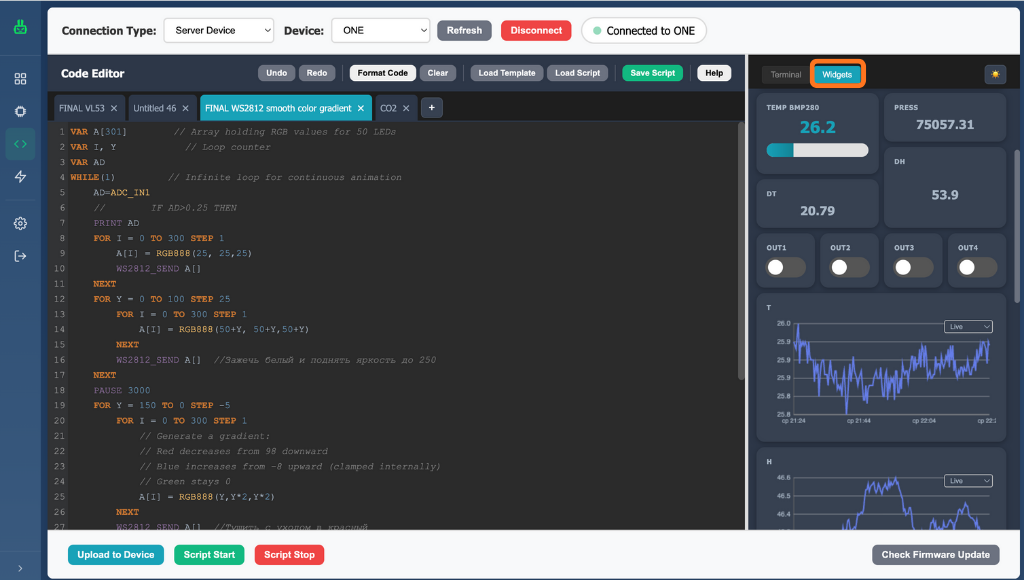
Widgets
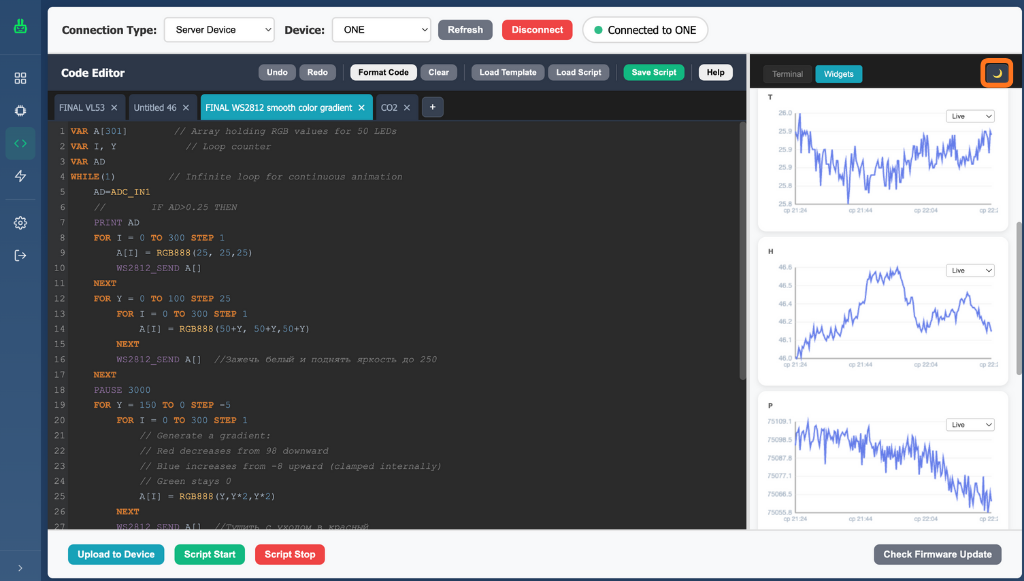
Custom user widgets for visualizing data, controlling outputs, and interacting with device variables.
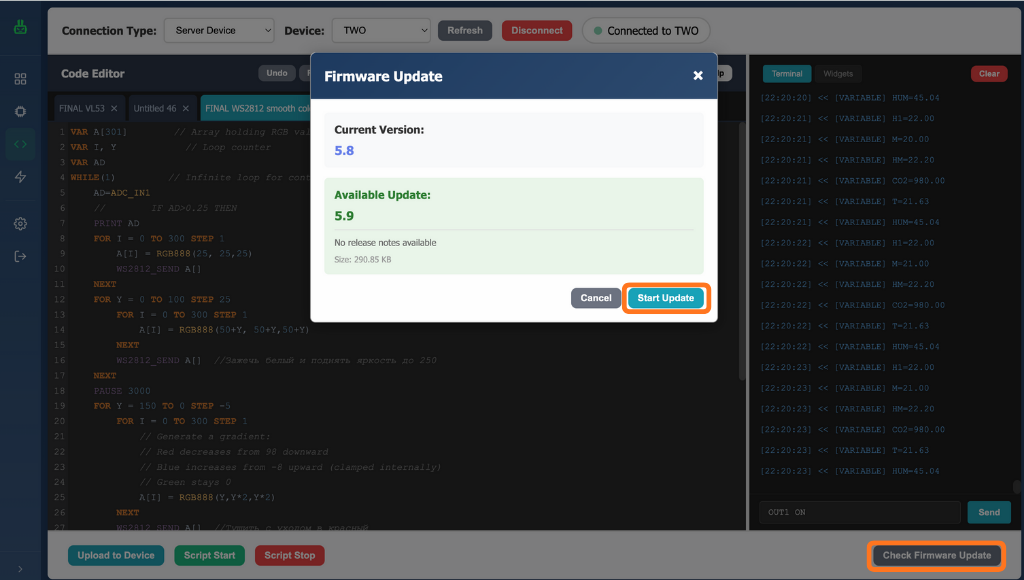
Update Firmware
Update the firmware of the selected device directly through the cloud interface.