Choose any R1BBIT board.
Connect the DHT20/21 temperature and humidity sensor to the 1WIRE port.
Connect the HD44780 Display to the I2C ports.
Connect the board to your PC using USB Type-C.
Open the R1BBIT Cloud platform
Register using your email address.
Confirm your email.
Log in to the development environment.
Open Code Editor → set Connection Type to Direct (Serial Port) → click Connect.
Write a simple script.
VAR T, H, F
// Declare variables:
// T – temperature in Celsius
// H – humidity in percent
// F – temperature in Fahrenheit

DHT_INIT(T, H, 300)
// Initialize DHT temperature & humidity sensor
// T will store temperature (°C)
// H will store humidity (%)
// 300 ms – sensor measurement interval

DISPLAY_INIT(I2C, HD44780, 20, 2)
// Initialize LCD display
// I2C – communication interface
// HD44780 – display controller
// 20 columns, 2 rows

WHILE(1)
// Infinite loop for continuous measurements

    F = T * 9 / 5 + 32
    // Convert temperature from Celsius to Fahrenheit

    PRINT "TEMPERATURE ", F.0, "F "
    // Output temperature in Fahrenheit (no decimals) to terminal

    PRINT "HUMIDITY    ", H.0, "% "
    // Output humidity value (no decimals) to terminal

    DISPLAY_TEXT(0, 0, "Temp: ", F.0, "F", Font_7x10, 1, 0x0000)
    // Display temperature on row 0 of the LCD

    DISPLAY_TEXT(0, 1, "Hum:  ", H.0, "%", Font_7x10, 1, 0x0000)
    // Display humidity on row 1 of the LCD

    PAUSE 1000
    // Wait 1000 ms (1 second) before the next measurement

WEND
// End of infinite loop
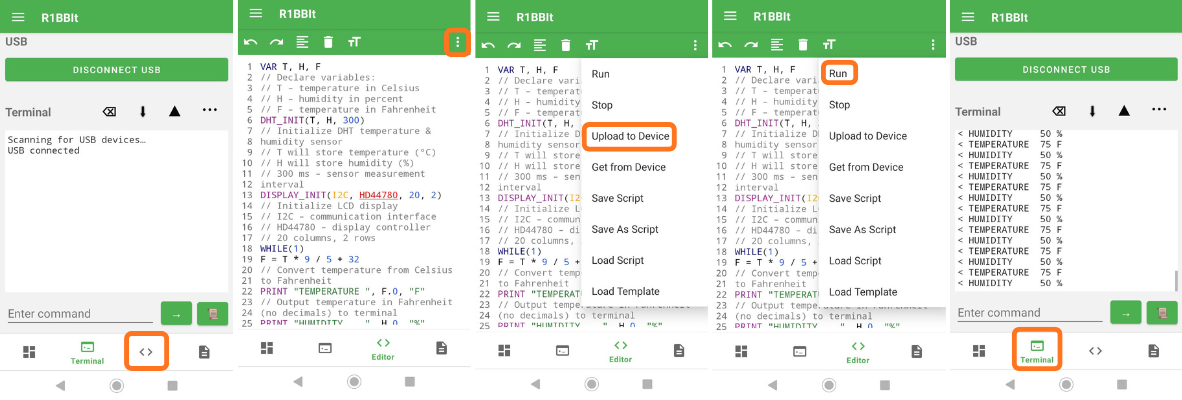
Click Upload to Device → Script Start.
Result:
The OLED display shows temperature in Fahrenheit and humidity in percent, updated every 1 second.
The same data is also displayed in the online terminal on the website.
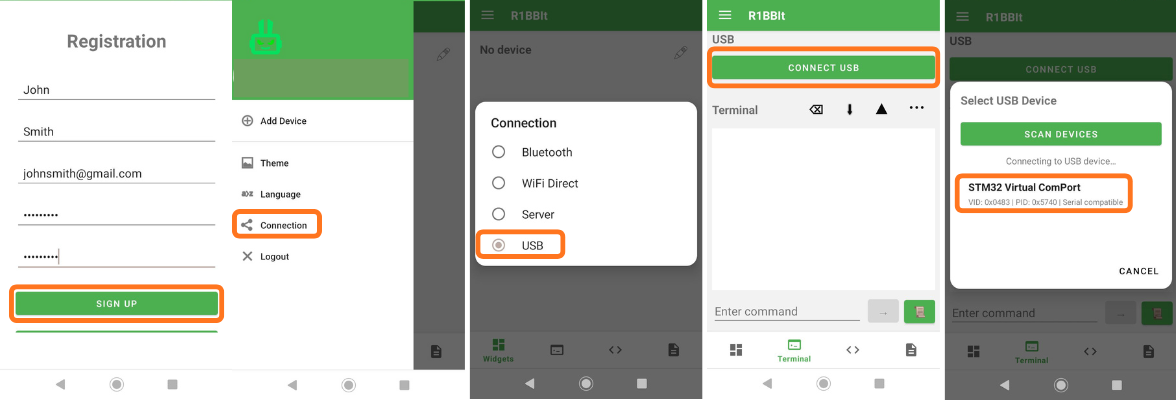
The same can be done using the mobile application:
- Install our Android app.
- Register using your email address.
- Confirm your email.
- Log in to the app.